


Understand Medicines Dashboard
From Medicines Tab > All Medicines you can go to Medicines page to view all the medicine details. Below is the dashboard view of the Medicine module:
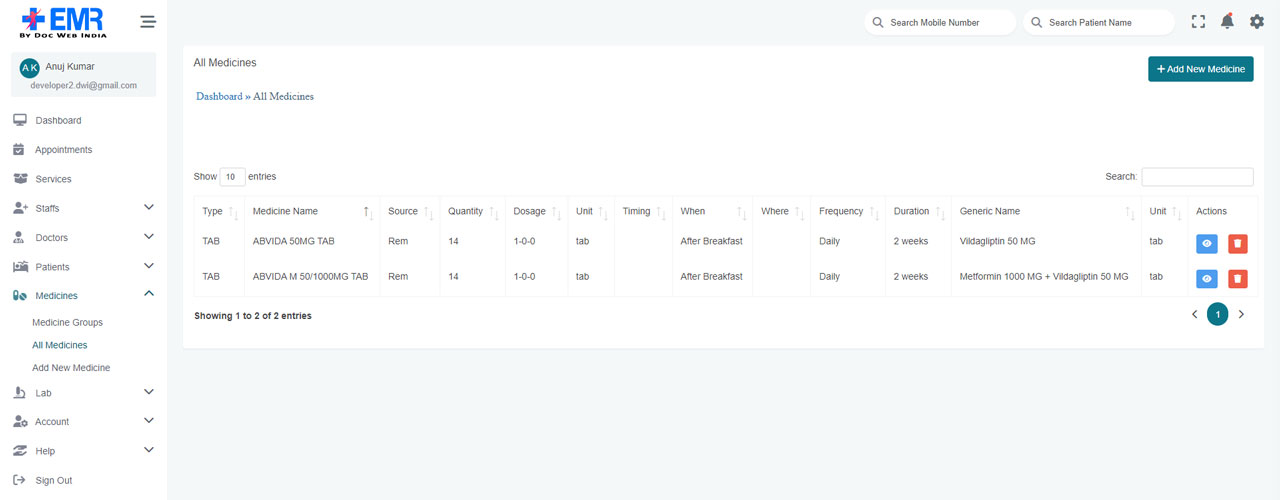
You can see action buttons under the Action Cell:
View/Edit Medicine DetailsWhen you will click on button, it will lead you to following page from where you can view & edit medicine details:
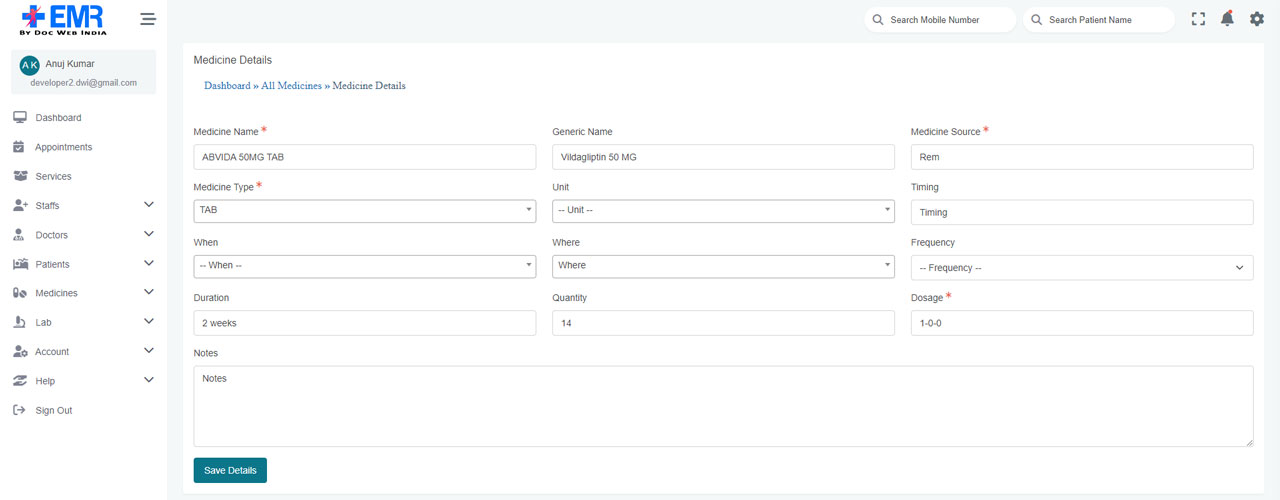
When you will click on button, popup will appear and you can confirm if you want to delete the medicine record.
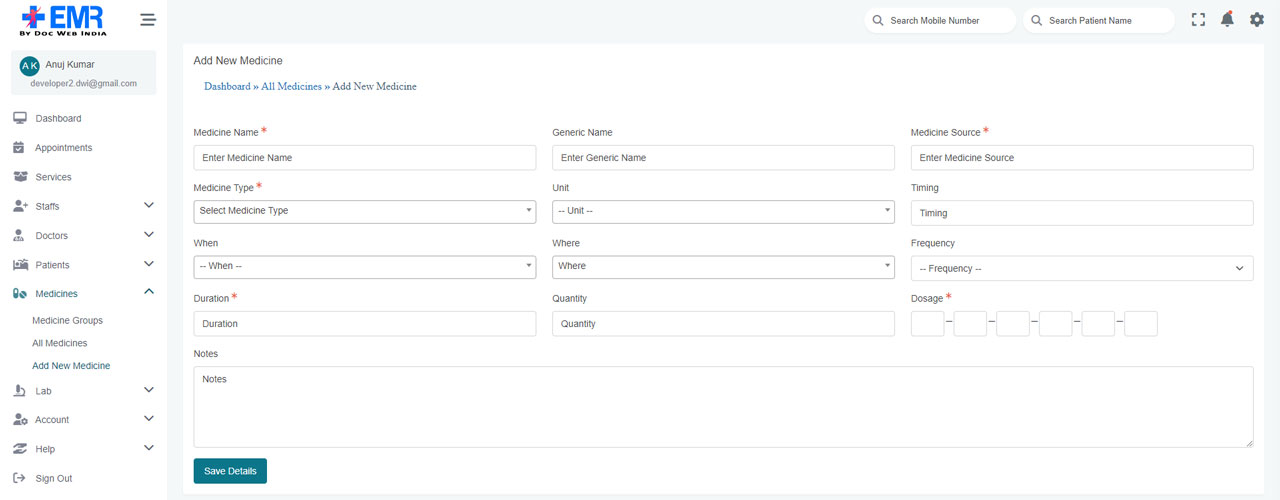
By clicking on the Add New Medicine button you can access to add new medicine form, fill the details and add new medicine.
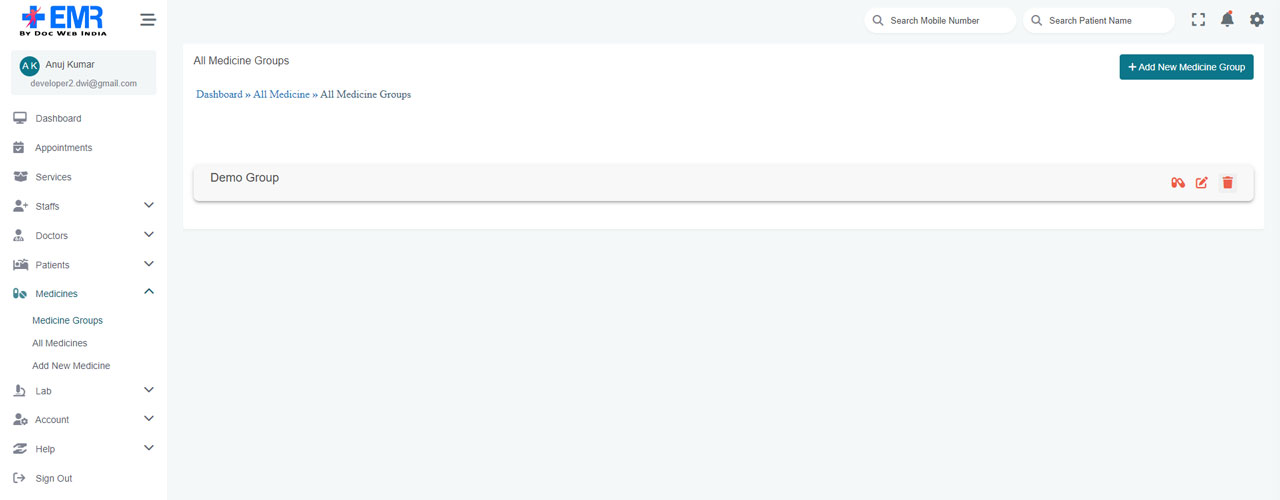
From Medicines Tab > Medicines Groups you can go to All Medicine Groups page to view all the medicine group (Rx Group). Below is the dashboard view of the Medicine Groups page:
Wehn you will click on the medicine group tab it will expand the view so that you can see which medicines are there in the group as shown below:
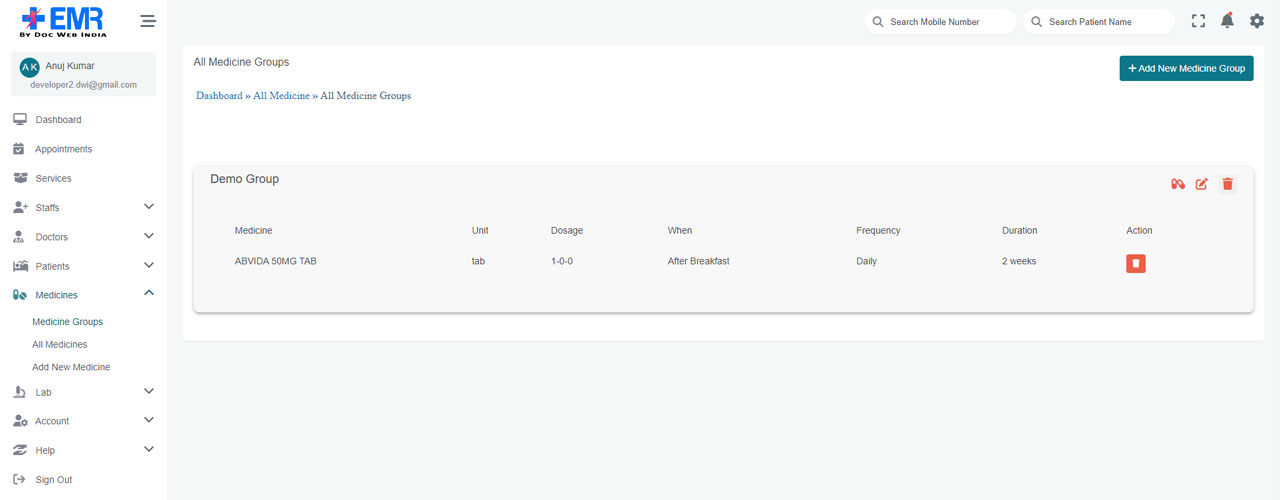
You can see action buttons in the right corners of each medicine group tab:
Add Medicine in Group
When you will click on button, it will lead you to following page from where you can add medicines in the group:
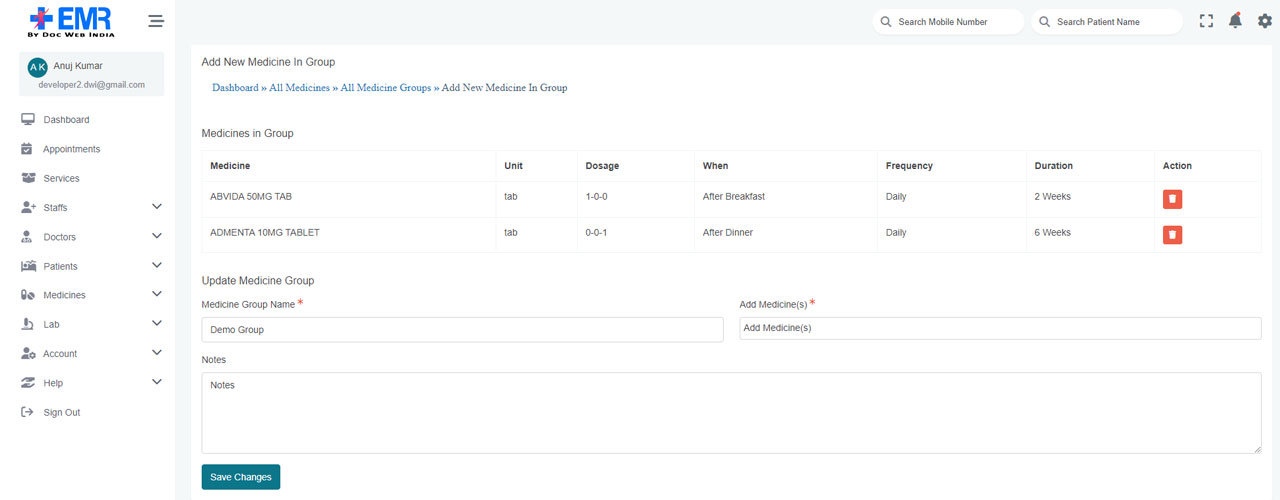
View/Edit Medicine Group
When you will click on button, it will lead you to following page from where you can view-add-edit medicines in the group:
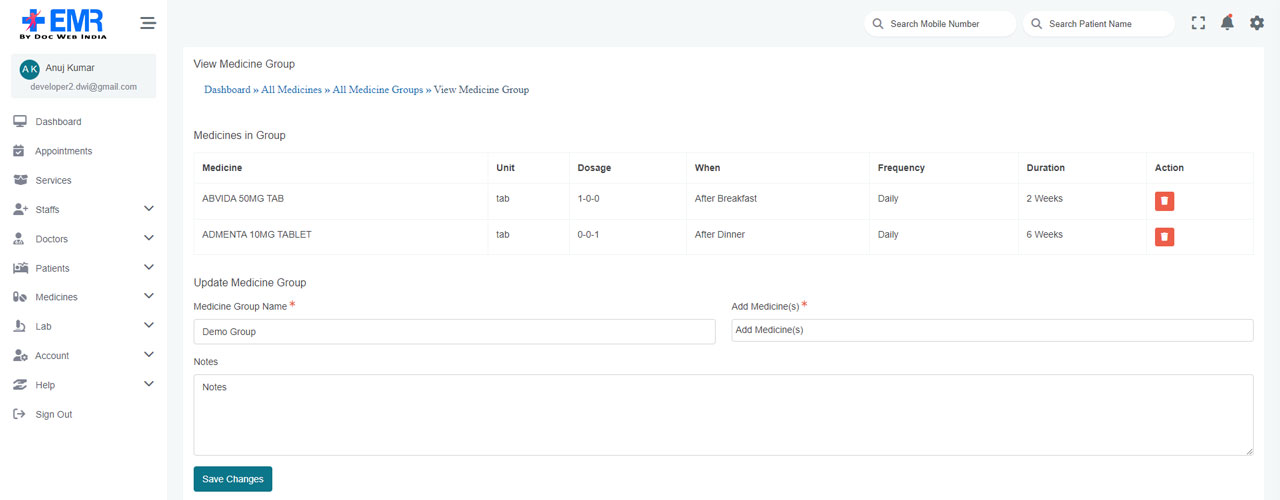
Delete Medicine Group
When you will click on button, popup will appear and you can confirm if you want to delete the medicine group.
You can see also delete buttons in the right corners in each every medicine table:
Delete Medicine from Group
When you will click on button, popup will appear and you can confirm if you want to delete the medicine from the group.
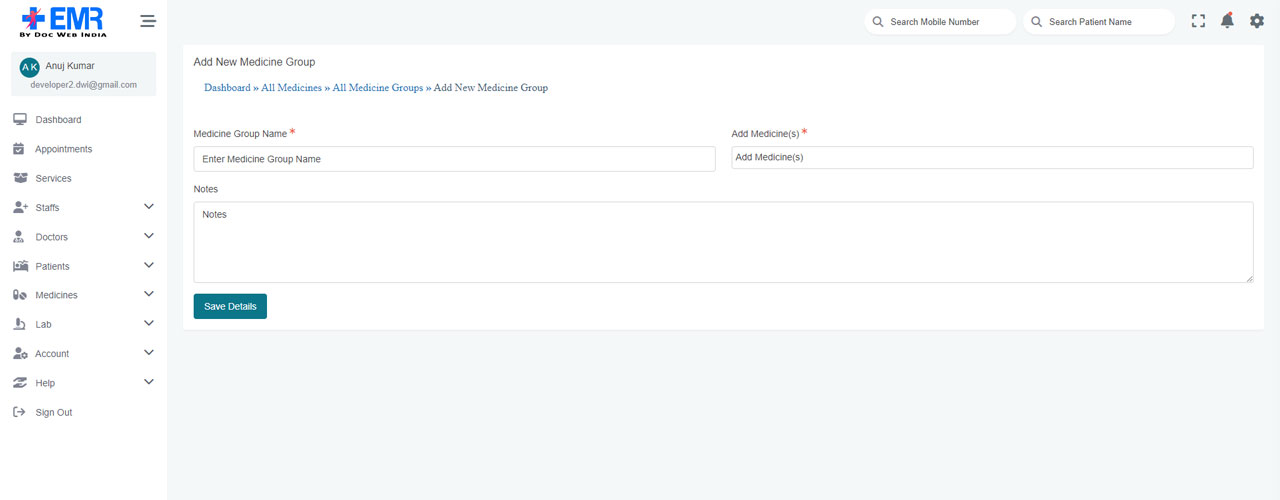
By clicking on the Add New Medicine Group button you can access to add new medicine group form, fill the details and add new medicine group.