


Understand Appointments Dashboard
From Appointments Tab you can go to All Appointments page to view all the appointments details. Below is the dashboard view of the Appointment module:
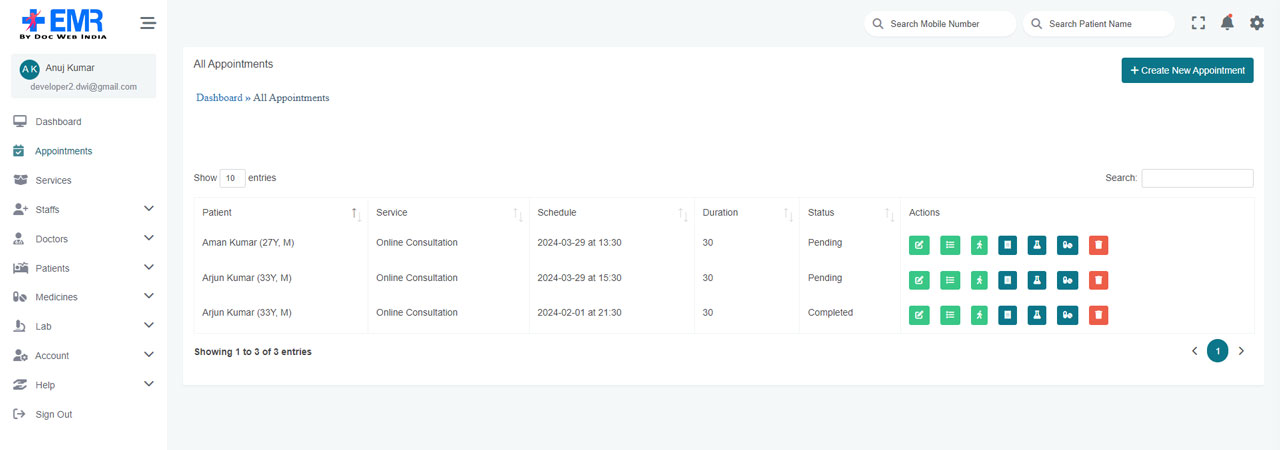
You can see action buttons under the Action Cell:
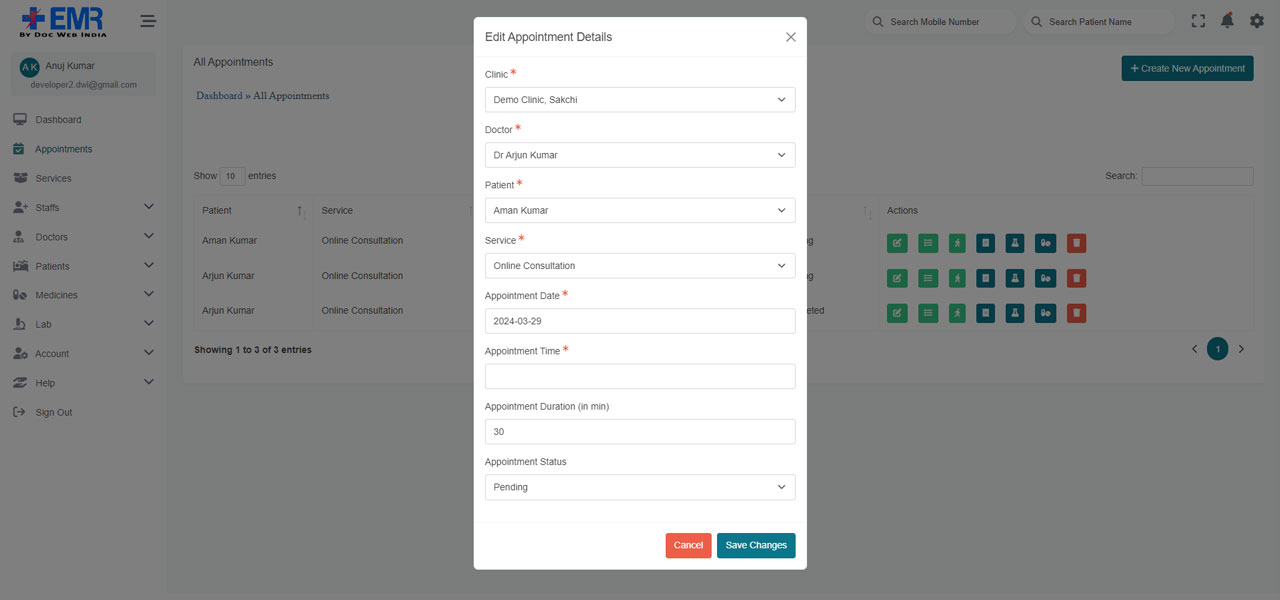
View/Edit Appointment DetailsWhen you will click on button, it will popup following modal from where you can view & edit appointment details:
When you will click on button, it will lead you to following page from where you can add-view-edit-delete appointment billing:
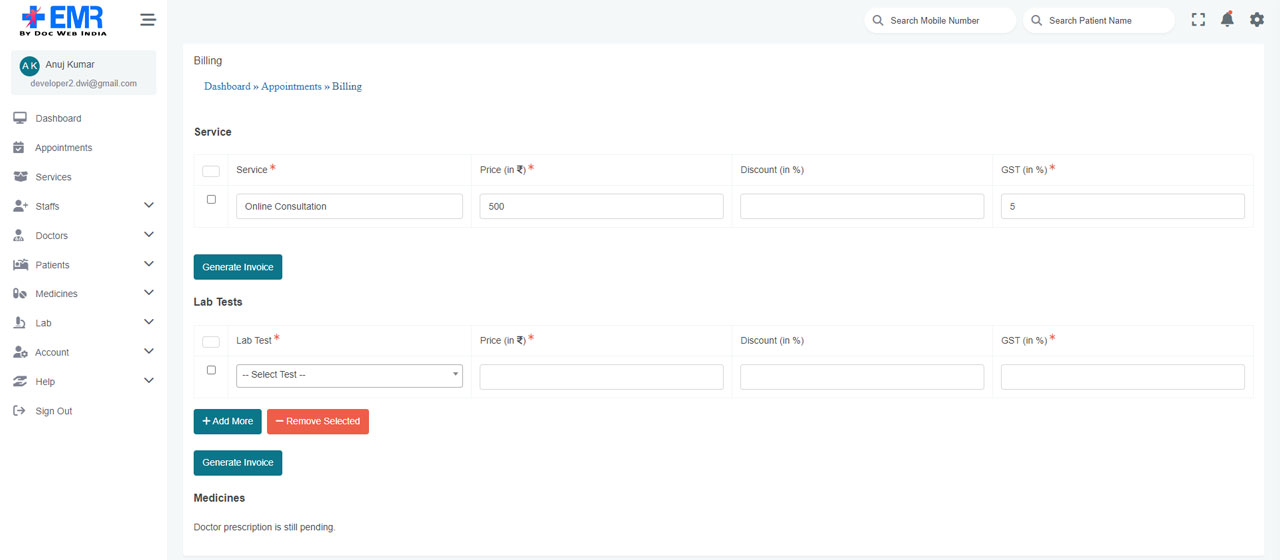
These details auto-populate based on visiting pad entries.
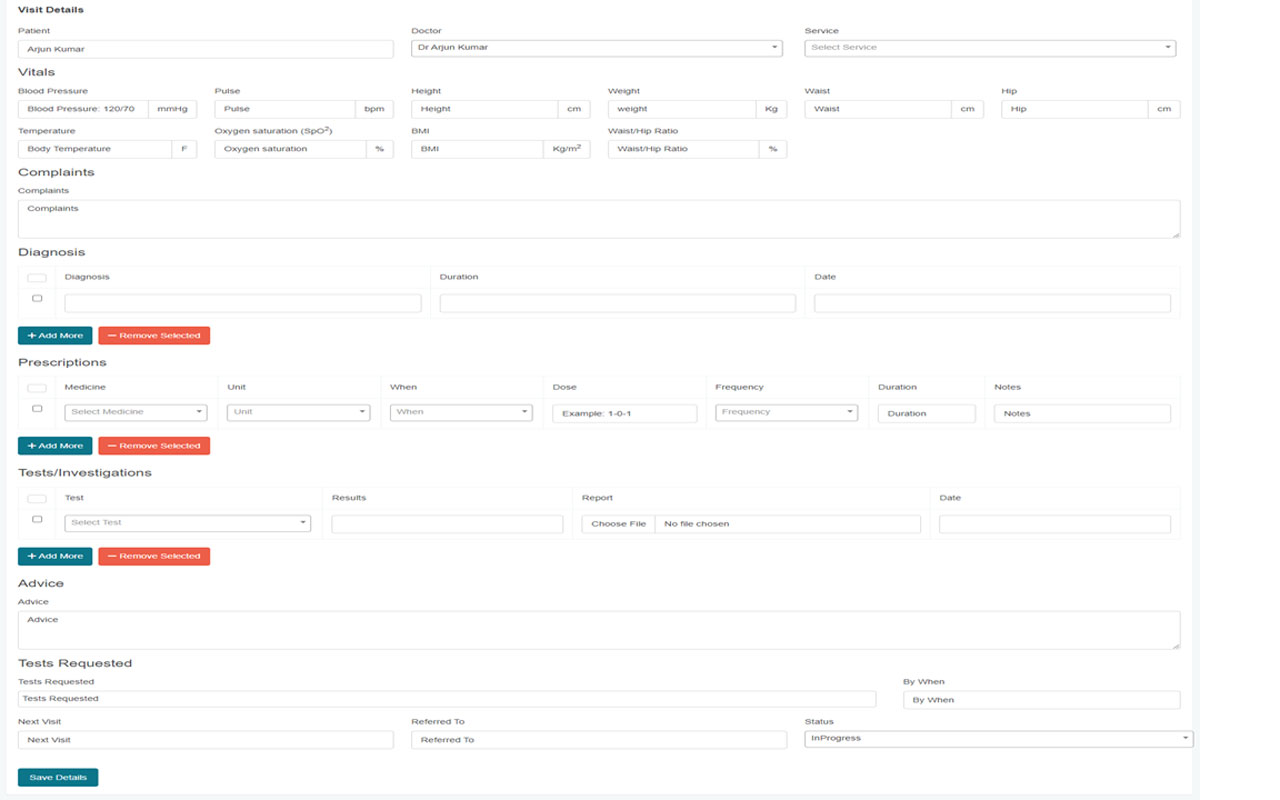
When you will click on button, it will lead you to following page from where you can create-view-edit visiting pad records.
For ongoing appointment visit or new visit following view will be available:
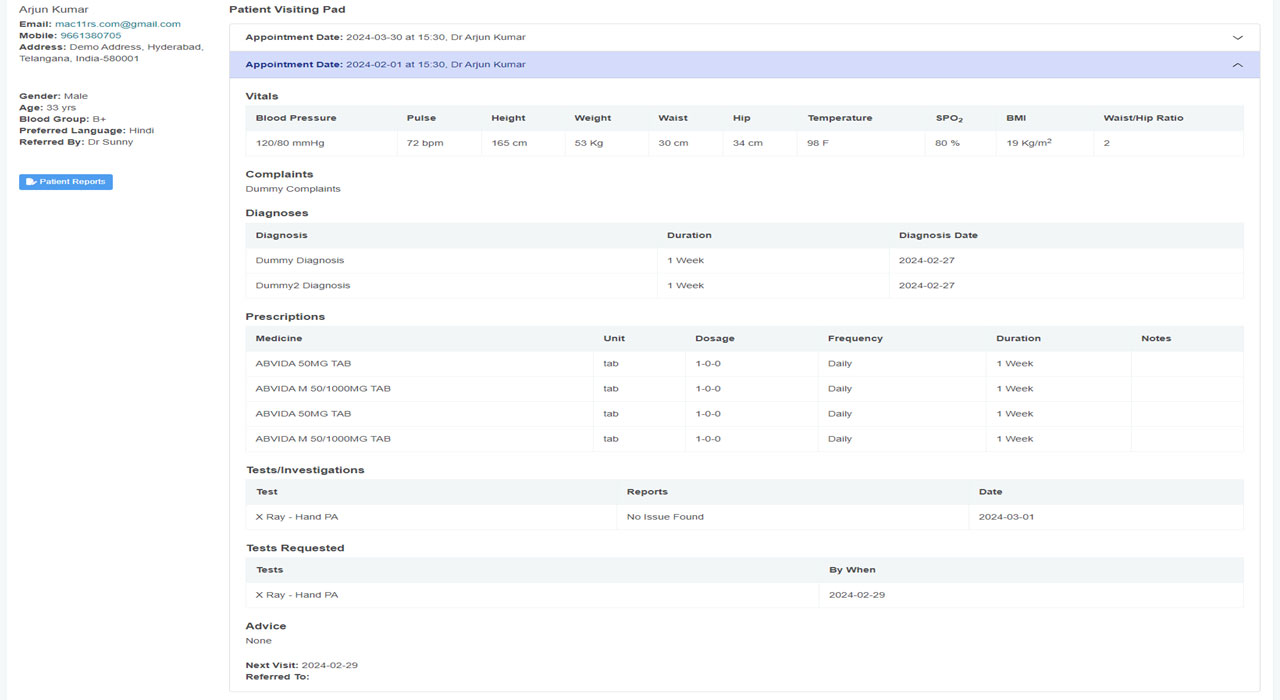
For completed visit following view will be available:
When you will click on , , buttons, all the invoices can be checked for the selected appointment based on visiting pad records.
When you will click on button, popup will appear and you can confirm if you want to delete the appointment record.
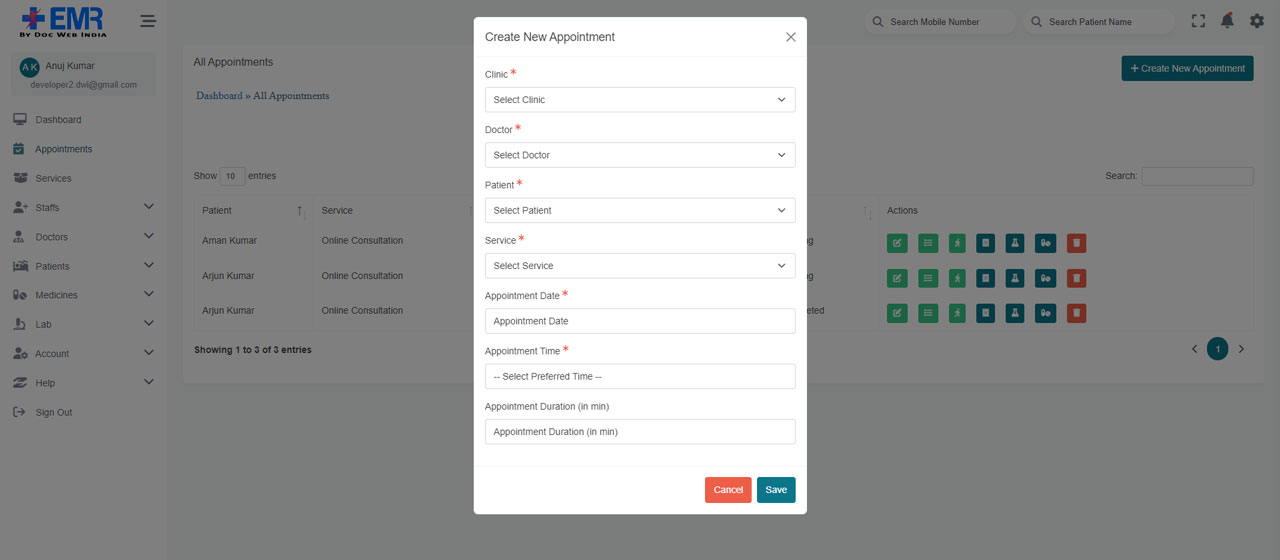
By clicking on the Add New Appointment button you can access to add new appointment form, fill the details and add new appointment. If your website appointment form is integrated with our EMR system, whenever a user will fill and submit the form, a new aptient record will be added automatically in records along with one scheduled appointment.